Maybe a Reel did worse than you hoped. Maybe you just don’t want people judging a post by its number. Either way, Instagram lets you hide like and view counts — on one post at a time, and in Settings. This guide shows you where the options are, what other people see afterwards, and how to turn the counts back on.
One note before you start: Instagram moves and renames menus between app versions. We describe each setting by what it does, using the wording Instagram shows today. If a label looks slightly different on your phone, look for the closest match.
Can you hide views on Instagram?
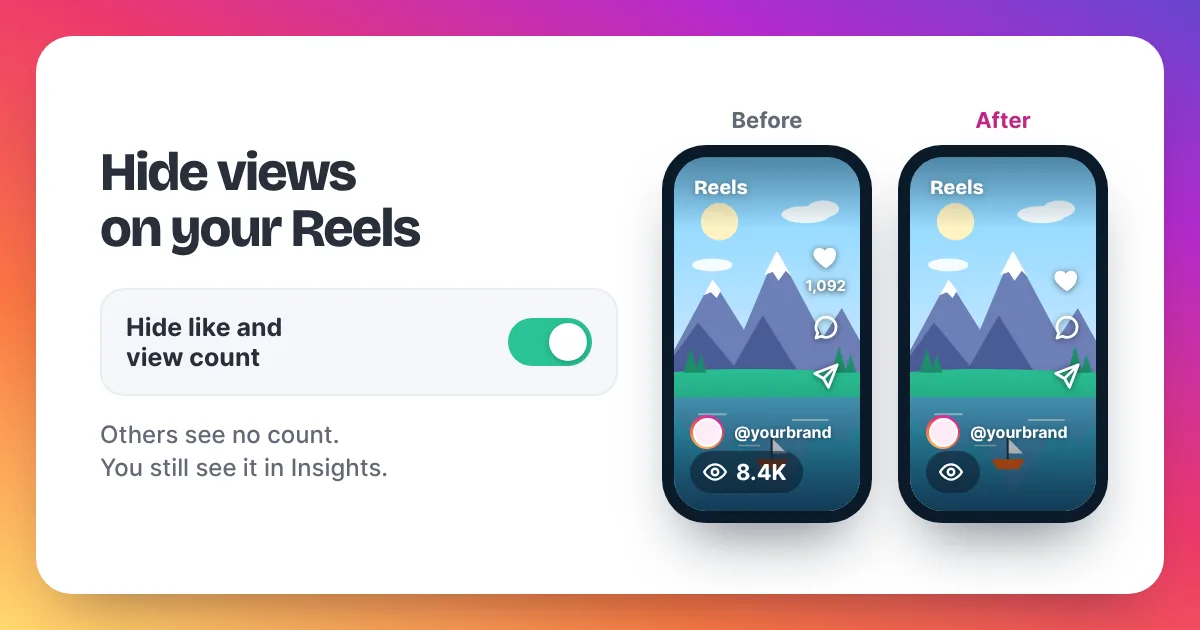
Yes. Instagram lets you hide like and view counts on your own Reels and posts, one post at a time, and lets you hide counts on posts from other accounts in Settings. Hiding only changes what other people see. You can still see your own numbers in Insights, and you can turn the counts back on whenever you like.
Instagram gives you two kinds of control over view counts. The first is per post: on any Reel or post you shared, you can open its menu and hide the like and view count, so other people no longer see those numbers on it. The second lives in Settings: you can choose to hide like and view counts on posts from other accounts in your own feed, so you see posts without their numbers. Neither setting deletes anything. Instagram keeps counting a view each time a Reel starts to play, and again each time it replays, so your totals keep growing in the background. On a professional account, you still see views, reach and watch time in Insights. Hiding is reversible, too: the same menu lets you show the count again later. In short, hiding views changes what people see, not what Instagram counts.
How to hide views on your own Reels and posts
To hide views on your own Reel, open it, tap the three dots and choose Hide like and view count. The count disappears for everyone else straight away. It works the same way on photo and carousel posts, and you can do it on new or old posts at any time.
- Open the Instagram app and go to your profile.
- Tap the Reel or post you want to change.
- Tap the three dots on the Reel or post.
- Choose Hide like and view count.
That’s it. Other people now see the Reel without its like and view count. You still see the numbers in Insights. Repeat the steps for each Reel you want to hide, because the setting works post by post.
You can also hide counts before a post goes live. When you share a new post or Reel, the posting screen’s extra settings offer the same option, so the post never shows a count at all. This is handy for a test Reel or a personal post.
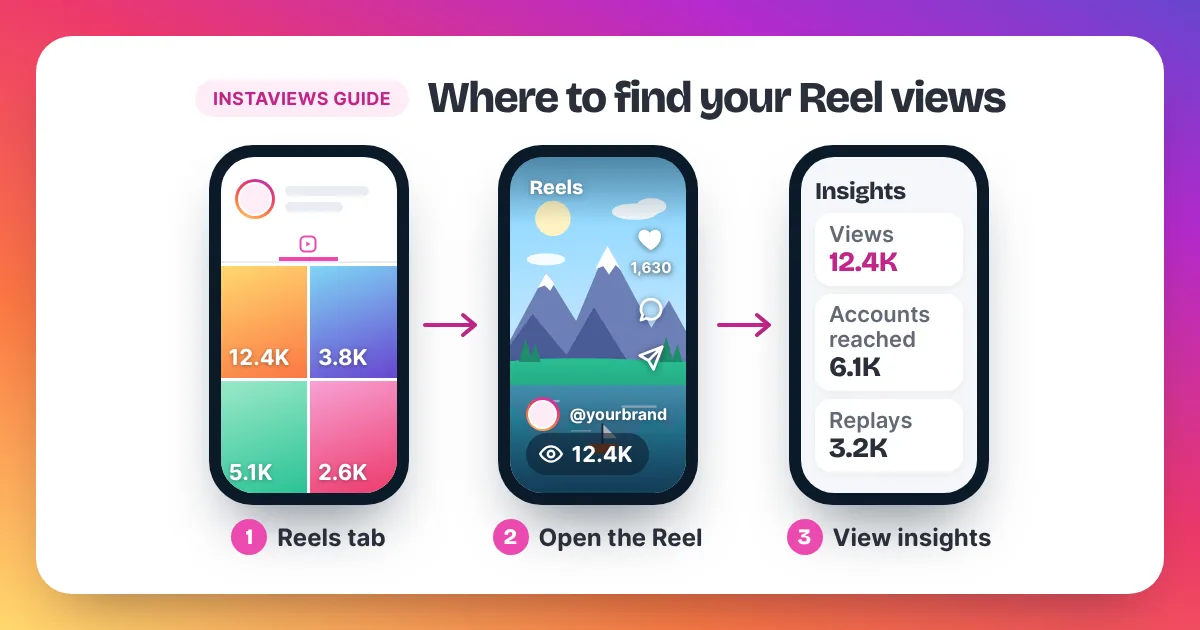
Not sure where your own numbers live once they’re hidden? Our guide on how to see Instagram views walks you through Insights step by step.
How to hide view counts on your profile grid
View counts on your profile grid follow Instagram’s count settings. Some versions of the app also include an option for view counts on your profile; if yours has it, it sits in Settings. Because the menu wording changes between app versions, the fastest way to find it is to search Settings for “view counts”.
- Go to your profile and open Settings from the menu at the top.
- Use the search bar at the top of Settings and type “view counts” or “like and view counts”.
- Open the matching option and switch the count off.
- Go back to your profile and check the Reels tab to see the result.
If you can’t find the option, update the app first. Instagram rolls out settings to accounts at different times, so a friend may see an option before you do. Hiding a single Reel with the three-dot menu, as above, still works either way.
How to hide counts on other people’s posts
To hide counts on other people’s posts, go to Settings and turn on the option that hides like and view counts on posts from other accounts. After that, posts in your feed show without their numbers. It only changes what you see; the people who posted still see their own counts.
This setting is about your own experience of the app. Some people turn it on to scroll without comparing numbers. Others turn it on for a while to focus on the content itself. Use the same search trick as above: open Settings and type “like” or “counts” to jump straight to it.
| What you hide | Where | Who stops seeing the count | Who still sees it |
|---|---|---|---|
| Counts on one of your Reels or posts | Three dots on that post | Everyone else | You, in Insights |
| Counts on your profile | Settings | Visitors to your profile | You, in Insights |
| Counts on other people’s posts | Settings | You, in your feed | The people who posted them |
How to turn views back on
To turn views back on for a Reel or post, open it, tap the three dots and choose the option to show the like and view count. For your profile or for other people’s posts, go back to the same option in Settings and switch it off. The full count comes back, including every view gained while it was hidden.
Nothing is lost while a count is hidden. Instagram keeps counting plays and replays in the background, so when you show the count again, it reflects every view so far. That makes hiding a low-risk choice: you can hide a count while a Reel is new, then show it once the number looks the way you want.
Some creators do exactly that. They hide counts on a fresh Reel, give it time, then show the count when it has momentum. Others show counts from the start because a visible number works as social proof. A Reel that already has views tends to make the next visitor stop and watch.
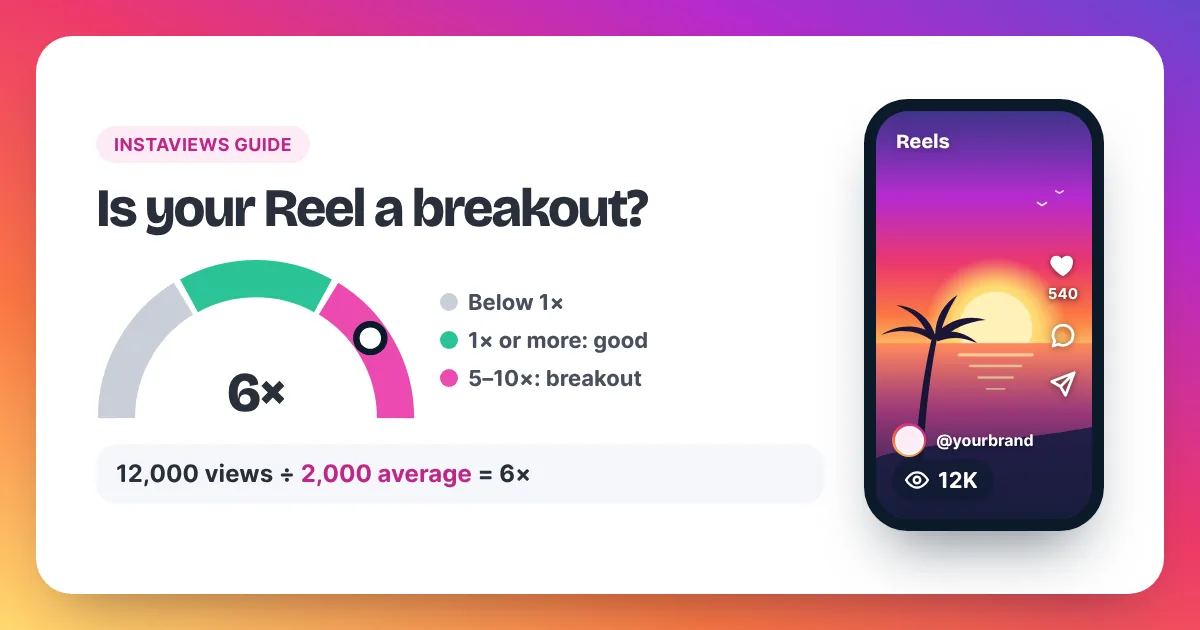
Want to know what counts as a good number before you show it? See how many views is viral on Instagram.
Does hiding views change how many views you get?
Instagram hasn’t said that hiding like and view counts changes how a Reel is shown or how many views it gets. The setting changes what other people can see on the post. Instagram still counts every play and replay, and your Insights still show the full numbers.
We won’t guess beyond that. Instagram has not published anything that links hiding counts to reach, Explore or recommendations, so any claim that hiding views “boosts” or “hurts” a Reel is a theory, not a fact.
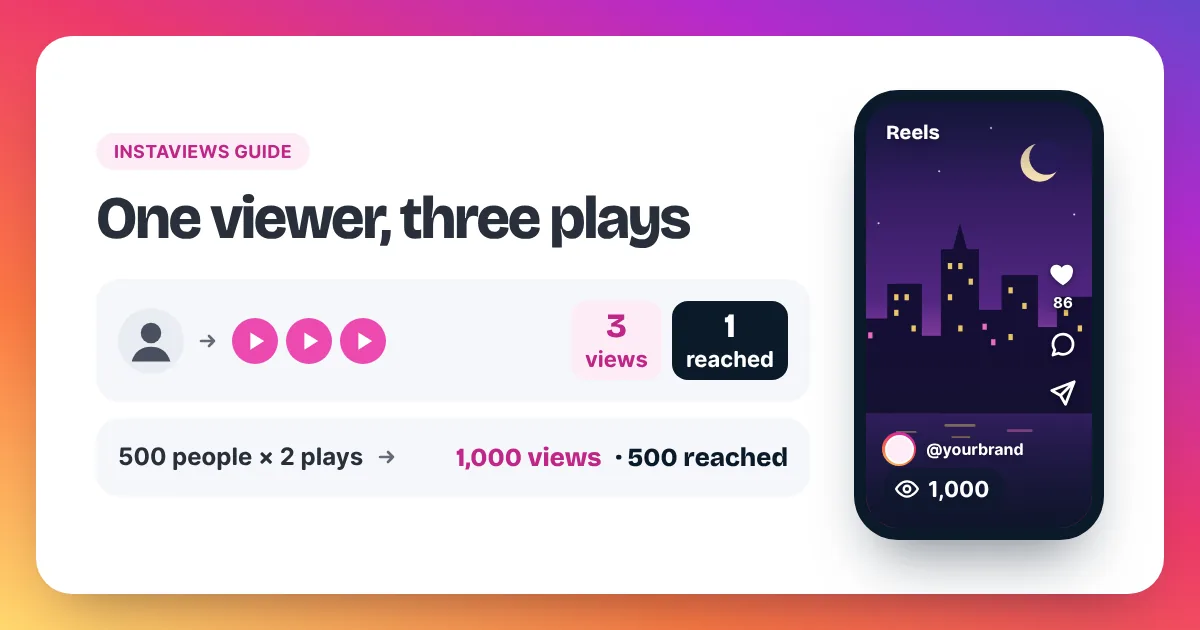
What we can say is how views are counted. Instagram counts a view each time a Reel starts to play, and again each time it replays. Meta’s developer documentation defines views as the “total number of times IG Media has been played on Instagram”. Hiding the count does not change that definition. If you want to understand plays, replays and reach in depth, read our full guide to views on Instagram, or the short section on where to see your views.
Why hide or show view counts?
People hide view counts to post with less pressure, to test new ideas quietly or to stop comparing numbers. People show them because a visible view count is social proof: a Reel with views looks worth watching. Both choices are fine, and you can switch at any time.
- Hide counts if you’re trying a new format, posting something personal, or just want people to judge the Reel itself.
- Show counts if you’re growing a brand, pitching to sponsors, or want new visitors to see that your Reels get watched.
- Mix both by hiding counts on a few posts and keeping them visible on your best Reels.
FAQ
Can I still see my views after hiding them?
Yes. Hiding only removes the count for other people. You still see your views, reach and watch time in Insights.
How do I hide Instagram Reel views?
Tap the three dots on your Reel and choose Hide like and view count. You still see the numbers yourself in Insights.
Can I hide views on old posts?
Yes. The three-dot option works on any Reel or post you shared, old or new, one post at a time.
Why can’t I find the setting?
Update the app and search Settings for “counts”. Instagram renames menus and rolls out options at different times, so wording can differ.
Does hiding views stop them from counting?
No. Views keep counting in the background, and the full total appears again when you show the count.